Lab pack, and some site license, installation and set up differs from that for the regular software as discussed in Installing. Log into your product page on the isee systems website to get installation instructions. After following those, the software will start without any activation dialog appearing.
When a user fist opens the software they will still be prompted to set the Default Options. Thereafter their preferences will be stored in their roaming preferences location and should be retained session to session.
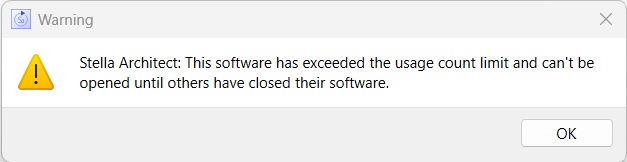
Stella has builtin support to manage concurrent usage based on the number of licenses you have acquired for the lab pack. This management occurs automatically in the background as long as the computer being used has internet access (https access to ssl.iseesystems.com). As each user opens the software a key is requested from our server. When the number of keys requested equals the number of licenses for the lab pack, a message will appear indicating that all seats are in use and the software will not open:
For the normal case, in which usage limits have not been exceeded, the software will simply open normally without any message.
When the software closes, the usage count is decremented and another user can open the software. If the software closes abnormally, or becomes inactive because a computer has gone into hibernation, the usage count will be decremented after an hour. In such a situation if the user tries to use the software when the usage limit has been reached by other users they will have five minutes to save their work. Similarly, if a user loses internet connectivity after starting the software they will see messages to close and save their work.