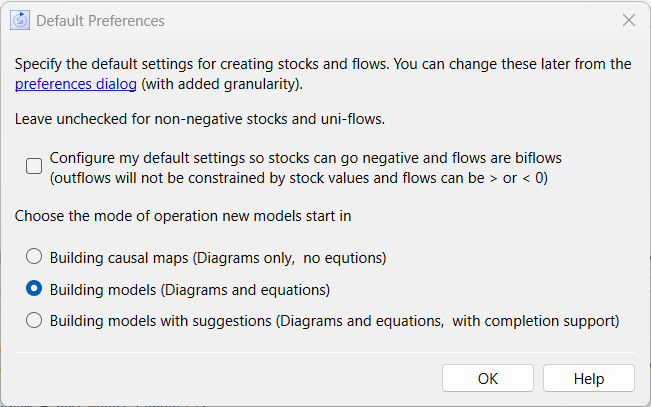
The first time you open Stella, a dialog will open to let you set up a small number of default settings. You can change these settings anytime later, but they're grouped together here so that you can change them quickly if you know how you'd like to keep them.
Physical stocks can never go negative, and Stella has built in logic to make sure that the same is true of the models that you build. Stocks are kept from going negative by constraining their outflows as necessary. This prevents the anomalous behavior that can result when physical stocks are negative, but it can also mask errors in formulations that are meant to make sure stocks remain positive. This option will only affect the type the stock is when it's first dropped. After you put a stock in a model, you can always change it to be, or not be, non-negative.
Like stocks, flows can also be only positive (uniflows) or both positive and negative (biflows). Forcing a flow to be a uniflow is much simpler that constraining a stock, since nothing but that flow needs to be changed. It's the equivalent of putting in a MAX(0,expression) as the equation for the flow. Uniflows going into stocks increase the stocks, while uniflows coming out of stocks decrease them. Biflows, on the other hand, can either increase or decrease stocks, depending on their value. Like stocks, individual flows can be marked non-negative, or not, any time after you've put them into your models.
In addition to being able to change individual stocks and flows, you can change the default behavior when they're first placed from the Preferences Dialog (from the Edit menu on Windows and the Stella menu on Mac).
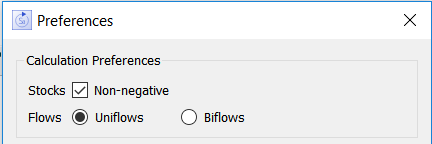
From preferences, you can control stocks and flows individually to meet your needs, whereas the initial default settings dialog changes both together.
From the Model Build Toolbar you can set Map  view, model
  view or suggest
  view. Map view does not show equations, or indicate errors on the diagram. It is useful for mapping out stock and flow structure before adding any equations. Model view shows equations, and indicated any that are incomplete using a caution
  sign. Suggest view tries to create or suggest equations based on changes you make to the diagram, and shows the results of changes as you make them by running the model on each change.
This setting determines where new models start. Once you save a model the last view you selected will be remembered.