 on the Interface Build toolbar:
Use the chat bot object to allow interface users to interact with the AI analysis tool Seldon that is available in the AI Assistant. Users can ask questions about model structure and behavior and get answers (no changes to the model will ever be made). To simplify the user experience, Stella automatically sends behavioral data so the user can focus solely on the conversation.
Note Chat bot usage will deduct from you AI Credits whether used on the desktop or from a published interface. An interface published without Authentication can therefore very quickly deplete your AI Credit balance.
To place a chat bot object, select on the Interface Build toolbar:
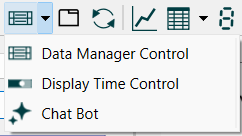
the click on the page where you want the chat bot object to appear. The object will appear as a window with a prompt at the bottom:
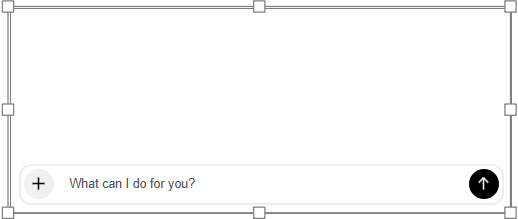
You can move and size it as needed. the area above the prompt will be used to log the conversation with the AI.
The options for the Chat Bot are similar to those for invoking Seldon on the Basic tab of the AI Assistant. None of these will be visible to the interface user - they will only be presented with the prompt "What can i do for you?".
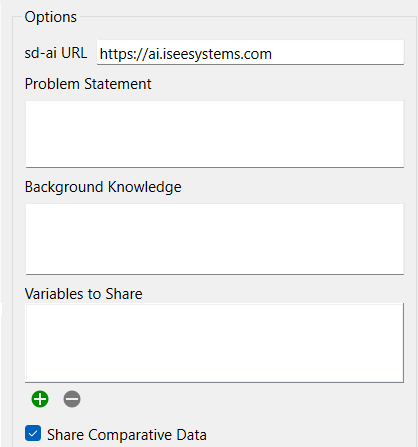
sd-ai URL is the location of the sd-ai Gateway that will be used. Normally this is just the default as shown. For local testing
Variables to Share needs to include all variables for which questions might be asked, which probably means all variables that are shown in graphs and tables. If there are additional variables that the interface user might think would be important these should also be included so that the LLM does not need to guess about their behavior. Use  to add one or more variables to the list. To remove from the list click on the variable to remove and then click on
  .
.
Share Comparative Data, if checked, will pass values from all runs for the list of variables to share. By default this is checked, and it needs to be checked if you are displaying comparative graphs or tables on the interface. If the graphs and tables are not comparative then unchecking this makes sense. Again it is best to have the AI respond to what the interface user can see.
Determines whether the object is visible. See Object Visibility (Interface)
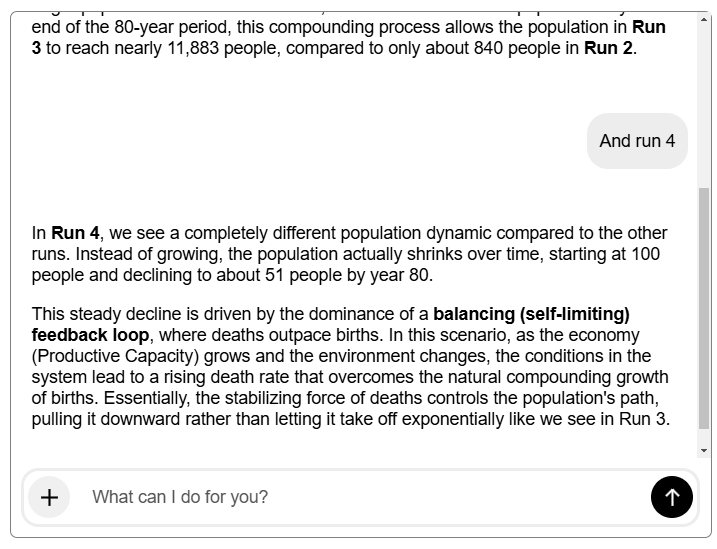
After the interface user types in a query and hits enter, or clicks on  the query will appear in the text area below any existing conversation and Thinking... will appear below that.
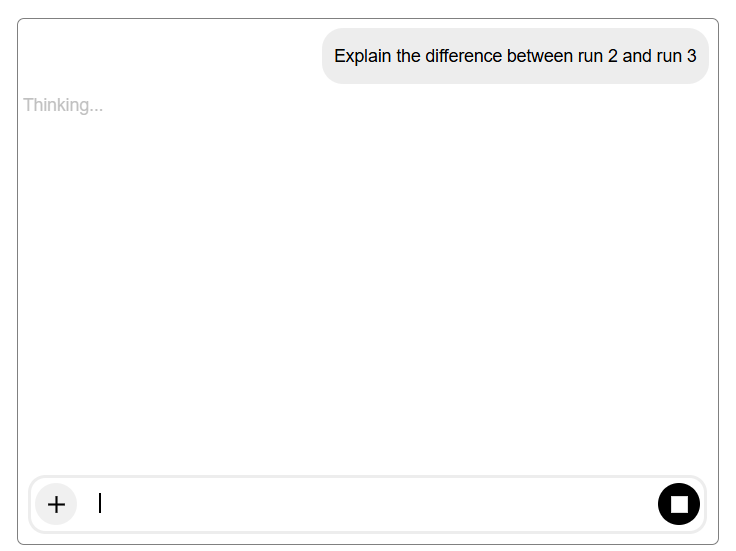
Once the results from the LLM are received, they will be displayed in the window as a conversation.
If the user leaves the page that the Chat Bot is on the content will be cleared - so that returning to the same page will show an empty Chat Bot object.